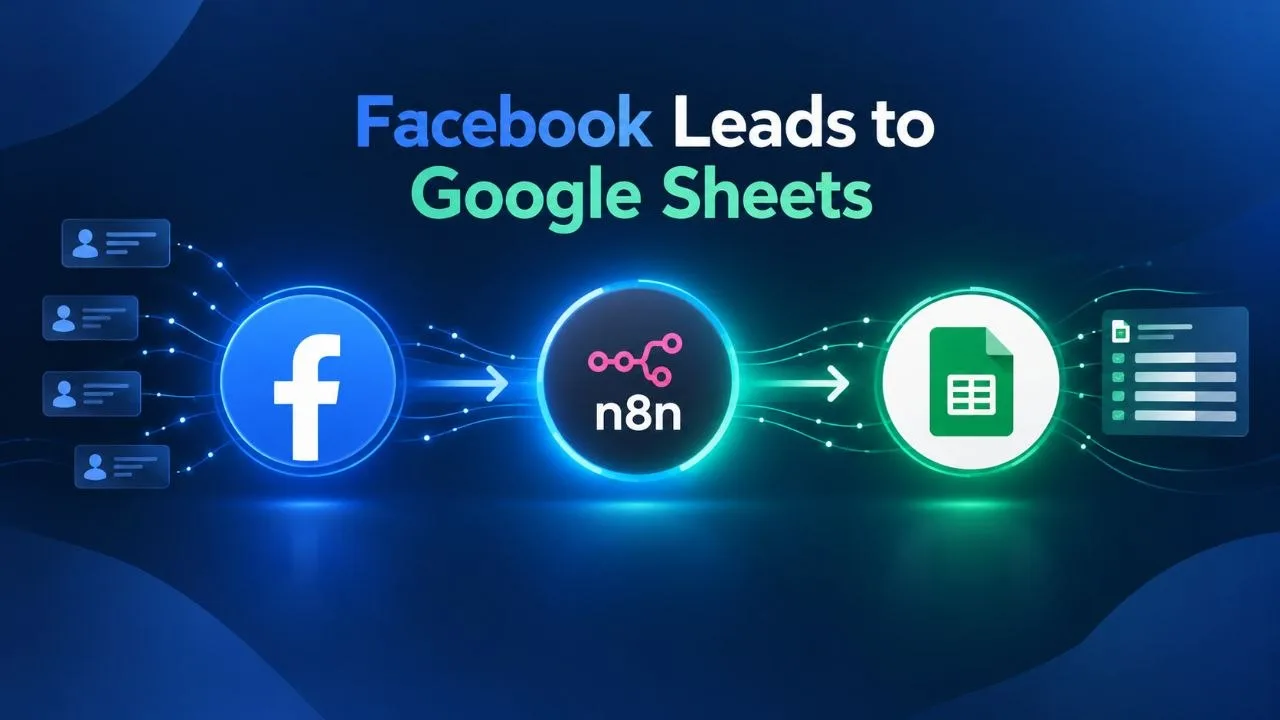
If you're running Facebook Lead Ads in Bangladesh, you know the excitement of seeing new leads come in. But you also know the pain of manually downloading CSV files, copying and pasting data, and trying to follow up before the lead goes cold. There is a better way. You can completely automate the process of sending leads from Facebook Lead Ads to Google Sheets using n8n, a powerful and cost-effective automation tool.
This automation saves countless hours, eliminates manual data entry errors, and ensures your sales team can act on new leads instantly. For any business in Bangladesh looking to improve efficiency and convert more leads into customers, this is not just a nice-to-have; it's a game-changer.
Key Takeaways:
- Stop Manual Work: Automatically send new Facebook leads to a Google Sheet without downloading CSVs.
- Instant Transfer: Leads appear in your sheet in real-time, allowing for immediate follow-up.
- Use n8n: This guide uses n8n, a flexible and affordable (or even free, if self-hosted) alternative to tools like Zapier.
- Prevent Lost Leads: Create a reliable, central database of every lead you generate, ensuring none fall through the cracks.
- Enable Advanced Actions: Beyond just saving to a sheet, you can set up instant notifications, duplicate checks, and more.
On This Page
- What is a Lead Automation Workflow and Why Does It Matter?
- How the Facebook Lead Ads to Google Sheets Automation Works
- Step-by-Step: Building Your n8n Workflow
- Taking Your Automation to the Next Level
- Common Mistakes to Avoid
- Your Pre-Launch Automation Checklist
- Frequently Asked Questions
- Next Steps: Get Your Leads Working for You
- Related Reading
- Sources
What is a Lead Automation Workflow and Why Does It Matter?
A lead automation workflow is an automated process that captures, organizes, and routes new lead information without any manual intervention. Instead of you or your staff repeatedly checking Facebook for new leads, the workflow does it for you 24/7. It acts as a digital assistant that instantly takes a new lead from your ad and puts it exactly where you need it.
For most businesses in Bangladesh, the standard process is a huge bottleneck. You run a campaign, wait a day, download the leads in a CSV file, format it, and then maybe upload it to a database or share it with a salesperson. By then, the lead has likely lost interest. In a competitive market, speed is everything. Automating the connection from Facebook Lead Ads to Google Sheets closes this gap, making your marketing efforts far more effective.
How the Facebook Lead Ads to Google Sheets Automation Works
The entire process is managed by a visual workflow in a tool called n8n. It consists of a trigger and an action connected together. The workflow listens for new leads from Facebook and, when one arrives, it automatically adds the lead's information as a new row in your designated Google Sheet. There are no complex scripts or coding involved.
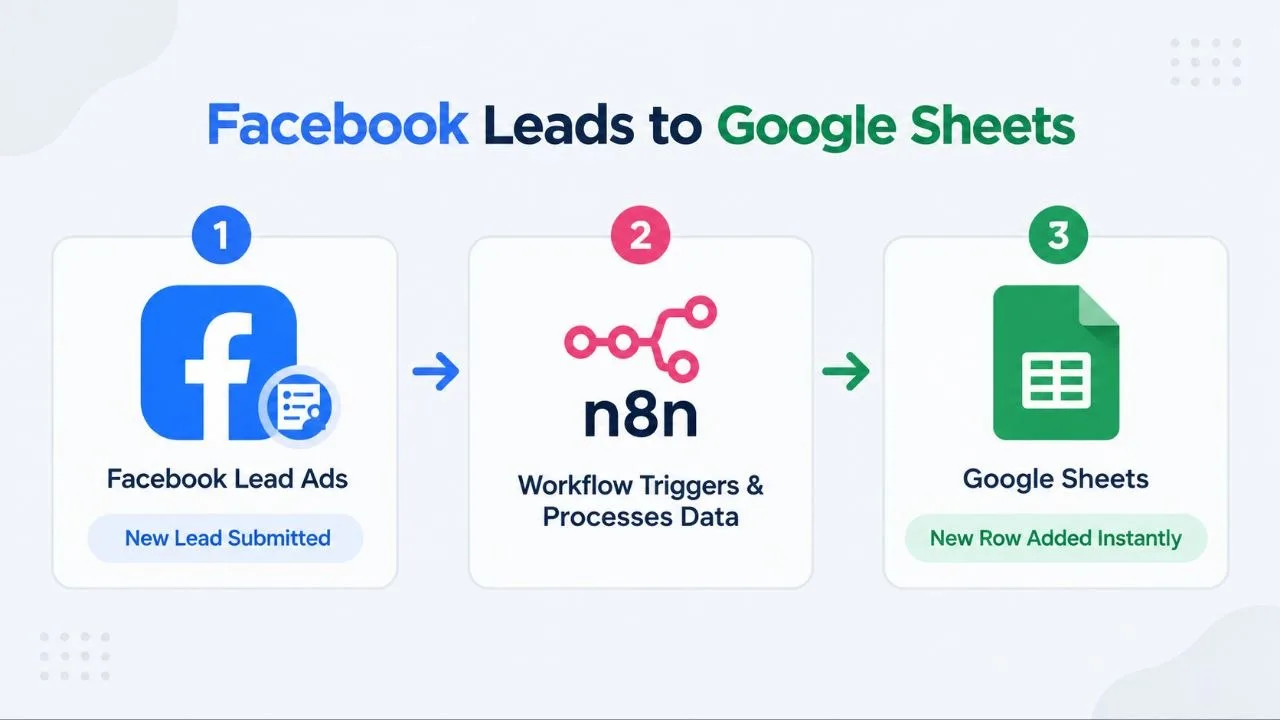
The magic behind this is a "webhook," a special URL that Facebook uses to send data to n8n the moment a lead is submitted. Here’s the simple sequence:
- A user fills out your Facebook Lead Ad form. They click "Submit".
- Facebook instantly sends the data (name, phone, email, etc.) to your n8n workflow's webhook.
- The n8n workflow "catches" the data, processes it as you've defined, and sends it to your Google Sheets node.
- The Google Sheets node adds a new row with all the lead's information. This all happens in a matter of seconds.
Step-by-Step: Building Your n8n Workflow
This section will walk you through creating the automation from scratch. It’s surprisingly simple and requires no prior technical expertise. Follow these steps, and you’ll be up and running in under 15 minutes.
Prerequisites: What You Need First
- A Facebook Business Page with admin access.
- An active Facebook Lead Ad campaign (or an existing form you can test with).
- A Google Account with access to Google Sheets.
- An n8n instance. You can use the free n8n cloud plan or a self-hosted version. To understand the costs involved, check out our guide on n8n automation costs in Bangladesh.
Step 1: Set Up Your Google Sheet
Before building the workflow, prepare your destination. Create a new Google Sheet. In the first row, create headers for the data you want to capture. A good starting point is:
Timestamp, FullName, PhoneNumber, Email, CampaignName, FormName, Status
You can add more columns for any custom questions in your lead form. The `Status` column is useful for tracking follow-up (e.g., "New," "Contacted," "Converted").
Step 2: Create the n8n Facebook Trigger Node
In your n8n canvas, click the '+' button to add a new node. Search for and select the "Facebook Lead Ads" trigger.
- Authentication: Click "Connect my account" and follow the prompts to log in to your Facebook account and grant n8n the necessary permissions.
- Select Page and Form: From the dropdown menus, choose the Facebook Page and the specific Lead Ad Form you want to connect. If you leave the form field blank, the trigger will fire for all forms on that page.
- Fetch Test Data: Click "Fetch test event" to pull in a sample lead from your form. This is crucial for the next step, as it gives you data to work with. If you don't have a real lead yet, Facebook provides a testing tool to submit a sample one.
Step 3: Add and Configure the Google Sheets Node
Click the '+' after your Facebook trigger node. Search for and add a "Google Sheets" node.
- Authentication: Just like with Facebook, connect your Google account and grant permissions.
- Operation: Set the operation to "Append or Update".
- Spreadsheet ID and Sheet Name: Select your spreadsheet and the specific sheet name from the dropdowns.
- Columns: This is where you tell n8n which data goes where.
Step 4: Map Your Fields
This is the most important step. You need to connect the data from the Facebook node to the columns in the Google Sheets node.
Click on the "Add Field" button in the Google Sheets node. For each column you want to populate, you will drag the corresponding data point from the input panel on the left.
- For your `FullName` column, drag the `full_name` field from the Facebook node.
- For `PhoneNumber`, drag the `phone_number` field.
- For `Email`, drag the `email` field.
- Pro Tip for Timestamp: For the `Timestamp` column, click the "Add Expression" button and enter
{{$now}}. This will automatically add the exact date and time the workflow runs.
Once all fields are mapped, execute the node manually to test it. You should see a new row appear in your Google Sheet instantly! Finally, save and activate the workflow.
Taking Your Automation to the Next Level
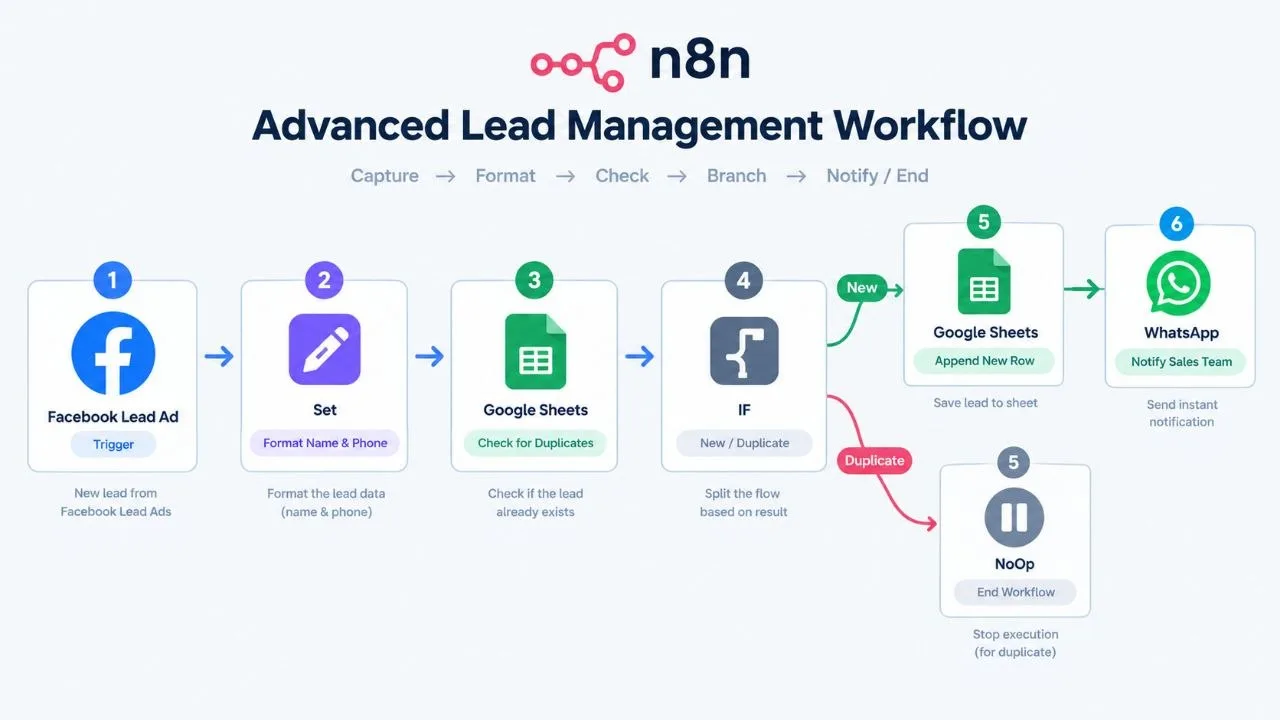
Simply saving leads to a sheet is a huge win, but with n8n, you can build a much more powerful system. The following enhancements turn a simple data-entry tool into a robust lead management machine, which is a core part of effective AI automation for small businesses.
Handling Duplicates to Keep Your Sheet Clean
To avoid cluttering your sheet with the same lead multiple times, you can add a step to check for duplicates before adding a new row. Before your "Append" node, add another Google Sheets node and set its operation to "Lookup". Configure it to search your `PhoneNumber` column for the phone number of the incoming lead. Then, add an "IF" node that checks if the lookup step found anything. Only if it finds nothing should the workflow proceed to add the new lead.
Sending Instant Lead Notifications via WhatsApp
In Bangladesh, quick follow-up on WhatsApp can dramatically increase conversion rates. After the Google Sheets node, add a "WhatsApp" node. Configure it to send a message to you or your sales team's number. You can include the new lead's data right in the message, for example: "New Lead! Name: {{ $json["full_name"] }}, Phone: {{ $json["phone_number"] }}. Follow up now!"
Formatting Data for Bangladeshi Context
Sometimes the data from Facebook isn't perfect. For example, the `full_name` field comes as a single string. If your CRM or other systems require a first and last name, you can use a "Set" node before the Google Sheets step to split it. You can also use this node to format phone numbers, for instance, by ensuring they all start with `+880`.
Common Mistakes to Avoid
While the process is straightforward, a few common issues can trip you up. Based on my experience building these workflows, here are the top things to watch out for:
- Incorrect Field Mapping: Double-check that you have dragged the correct data field to each column in your Google Sheets node. Mixing up name and email is a common mistake.
- Authentication Errors: Facebook or Google tokens can sometimes expire. If your workflow suddenly stops working, the first step is to reconnect your accounts in the "Credentials" section of n8n.
- Not Using Test Data: Always use the "Fetch test event" feature. Trying to map fields without sample data is like trying to pack a suitcase with your eyes closed.
- Forgetting to Activate: It’s a simple one, but many people build a perfect workflow and then forget to click the "Active" toggle. If it's not active, it won't run.
Your Pre-Launch Automation Checklist
Before you let your new automation run live, go through this quick checklist to ensure everything is perfect.
- [ ] Google Sheet is created with all necessary column headers.
- [ ] n8n workflow has a Facebook Lead Ads trigger and a Google Sheets node.
- [ ] Both Facebook and Google accounts are successfully authenticated in n8n.
- [ ] All lead form fields are correctly mapped to the right Google Sheet columns.
- [ ] The `{{$now}}` expression is used for the timestamp.
- [ ] The workflow has been tested with sample data and a new row was created successfully.
- [ ] The workflow is set to "Active".
Frequently Asked Questions
Can I connect multiple Facebook Pages or lead forms to one Google Sheet?
Yes. You can create a separate n8n workflow for each form, all pointing to the same Google Sheet. Alternatively, a more advanced workflow could use multiple trigger nodes, but starting with one workflow per form is easiest for beginners.
Is n8n free for this automation?
Yes, this workflow can be built on n8n's free plan. If you have a high volume of leads or need more complex workflows, you might consider a paid plan or self-hosting n8n, which is a very cost-effective option for businesses in Bangladesh.
How quickly will my new leads appear in Google Sheets?
The transfer is practically instant. The n8n workflow is triggered by a webhook from Facebook, meaning as soon as a user submits the form, the data is captured and sent to your Google Sheet within seconds.
Do I need to be a programmer to use n8n?
No, not at all. n8n is a visual workflow builder. You connect nodes by dragging and dropping, and you map data fields in a user-friendly interface. No coding is required for this entire process.
What happens if my Google Sheet is offline or there is an error?
n8n has built-in error handling. The workflow execution will show an error, and the data from the failed run is saved so you can retry it manually once the issue is fixed. You can also build error-handling routes into your workflow.
Can I send leads to my CRM instead of Google Sheets?
Absolutely. Google Sheets is just one option. n8n has nodes for popular CRMs like HubSpot, Salesforce, and Zoho. You would simply replace the Google Sheets node with your CRM node and map the fields accordingly.
Does this automation work for all types of Facebook Ads?
This specific workflow is designed for Facebook Lead Ads, which are the ads that open an on-platform form. It does not work for ads that send users to an external website or landing page.
How do I handle custom questions from my Facebook lead form?
Custom questions you add to your form will automatically appear as available data points in the n8n Facebook Lead Ads trigger node. You can then map these custom answers to their own columns in your Google Sheet just like you map the standard fields.
Next Steps: Get Your Leads Working for You
You now have a powerful, automated system for capturing every single lead without lifting a finger. This frees you up to focus on what truly matters: talking to potential customers and growing your business. Here’s what to do next:
- Build this workflow today. Don't put it off. This 15-minute investment will pay for itself within the first day of running your ads. For a better understanding of how to get quality leads, you can also read this guide on getting quality Facebook leads.
- Explore further automation. Think about what should happen after the lead is in the sheet. Could you add them to an email list? Send them an automated welcome message? The possibilities are endless.
- Get expert help when you need it. If you want to build more advanced workflows—integrating CRMs, AI chatbots, or complex follow-up sequences—but don't have the time to figure it all out, I can help.
As an AI and workflow automation specialist in Dhaka, I help businesses like yours implement systems that save time and drive growth. If you're ready to take your lead management to the next level, let's talk.
Book a consultation today to discuss your automation needs.
Related Reading
- n8n Automation Cost in Bangladesh: What to Expect to Pay
- AI Automation for Small Business in Bangladesh: Complete 2026 Guide
- ফেসবুক Lead Ads: ভুয়া লিড নয়, আসল কাস্টমার পাবেন কীভাবে?
Sources
- Sync Facebook/Google lead ads to Google Sheets & Salesforce CRM
- Connect Facebook Lead Ads to Google Sheets
- Facebook Lead Ads and Google Sheets Integration
Checked on 2026-10-22.